| General | Console | Combinations | Recordings | Demo | Gallery | Settings | Return to Main Page |
Recordings View
The Recordings view is used to manage the recordings of the organ, which are WAV files placed in the app's documents directory and accessible via iTunes File Sharing (see below for other sharing options). Other than when you record the analog audio out signal of the device with an external audio recorder, these internal recordings are completely digital and lossless.
Napo apps also support the upload of audio files by so-called Document Interaction. For example when you receive an e-mail with an audio attachment, you can long-tap the attachment in the e-mail app and then select a Napo app to copy the file to its documents directory. This can also be used to upload impulse response files to the app (see below, Copy to impulse responses).
Initially, the Recordings view shows a list of the available audio files like this:
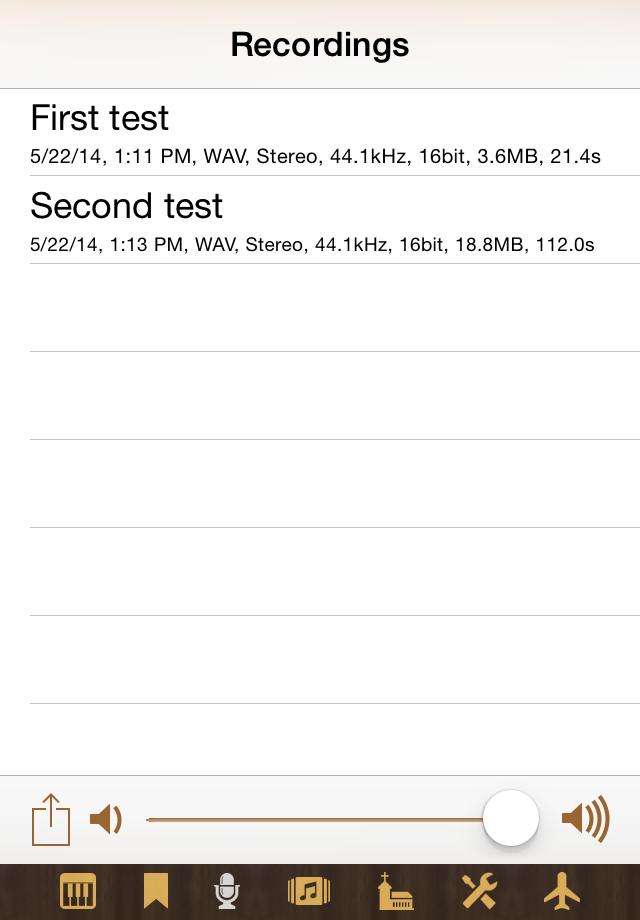
When you select an audio file by tapping at its name, you get play controls at the top of the screen:
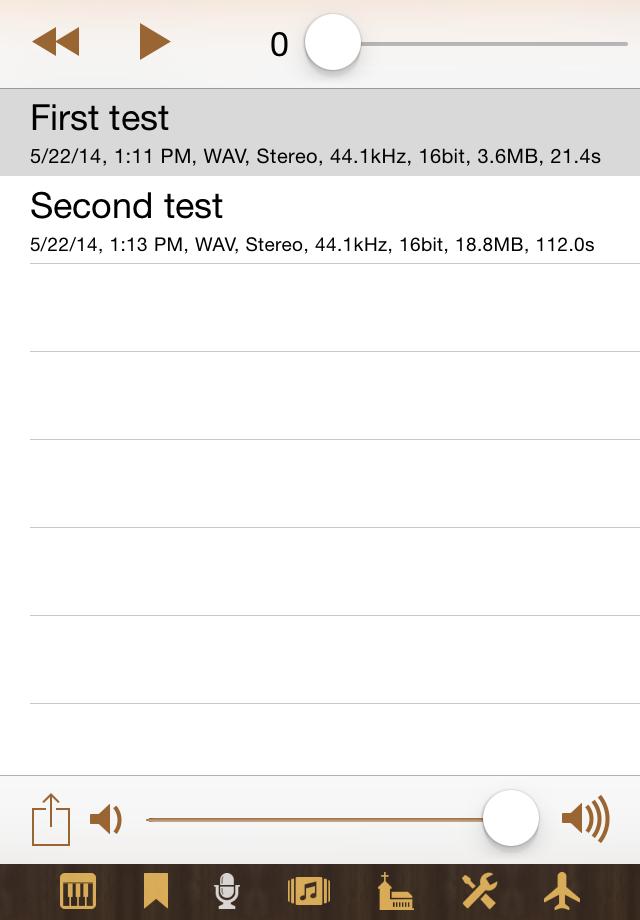
It is obvious how to use these controls. The top slider is for displaying or changing the position within the audio file. You can also long-tap at the seconds display and then enter the number of seconds. The bottom slider is for playback volume control. The bottom left action menu lets you delete all recordings.
If you long-tap an audio file, you get an action menu:
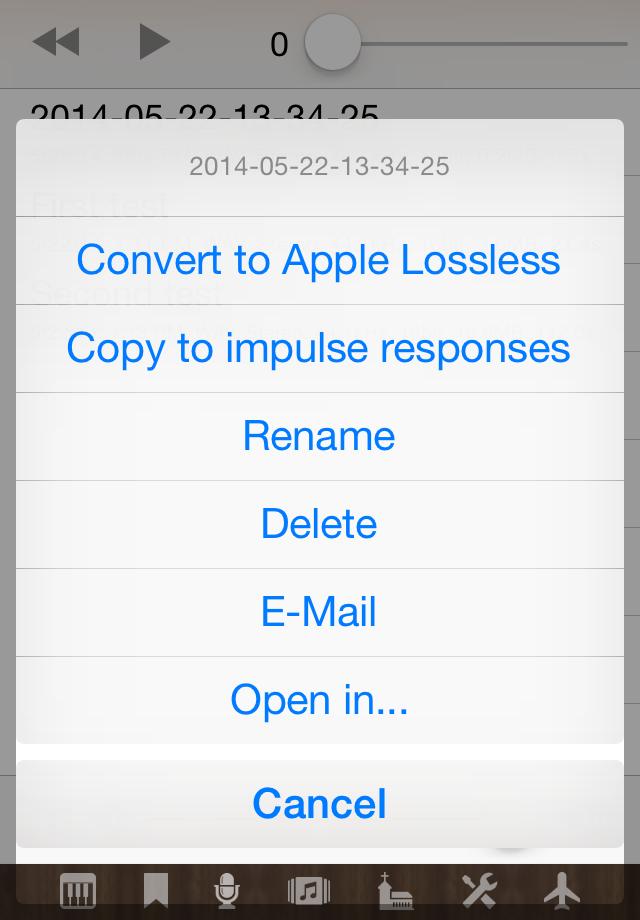
- Convert to Apple Lossless: This action converts the selected WAV file to an M4A file, which is added to the list. The WAV file is not deleted. Typically, the M4A file is about 40% smaller than the WAV file. If a WAV file is too large for e-mail, you can try the M4A file. There is no loss of sound quality.
- Copy to impulse responses: This option is available for audio files with a duration of less than 15 seconds. It copies the file to the impulse responses library, so you can select it when you switch to convolution reverb in the Sound tab of the Settings view.
- Rename recording: To rename the selected recording.
- Delete recording: To delete the selected recording. There is no undo option! Deleting is also possible by swiping the table entry.
- E-Mail: This option is available if e-mail is set up on your device. The app allows to e-mail files with a size of at most 10 MB.
- Open in...: This is for handing the audio file to a suitable other app by Document Interaction. After tapping this action you can choose the target app. Apps for audio processing or sharing, or general file sharing apps like the Dropbox app, are sensible targets.