| General | Console | Combinations | Recordings | Demo | Gallery | Settings | Return to Main Page |
Demo View
The demo pieces of a Napo app are not audio recordings, but commands to the app to select stops and to play notes. So this is a live performance in which you see the stop buttons move in the Console view, select stops yourself while the demo is playing or even use your MIDI keyboard to play along with the demo.
The Demo view shows a list of the included demo pieces, grouped by their polyphony requirements. As an example look at the Demo view of PiteaMini:
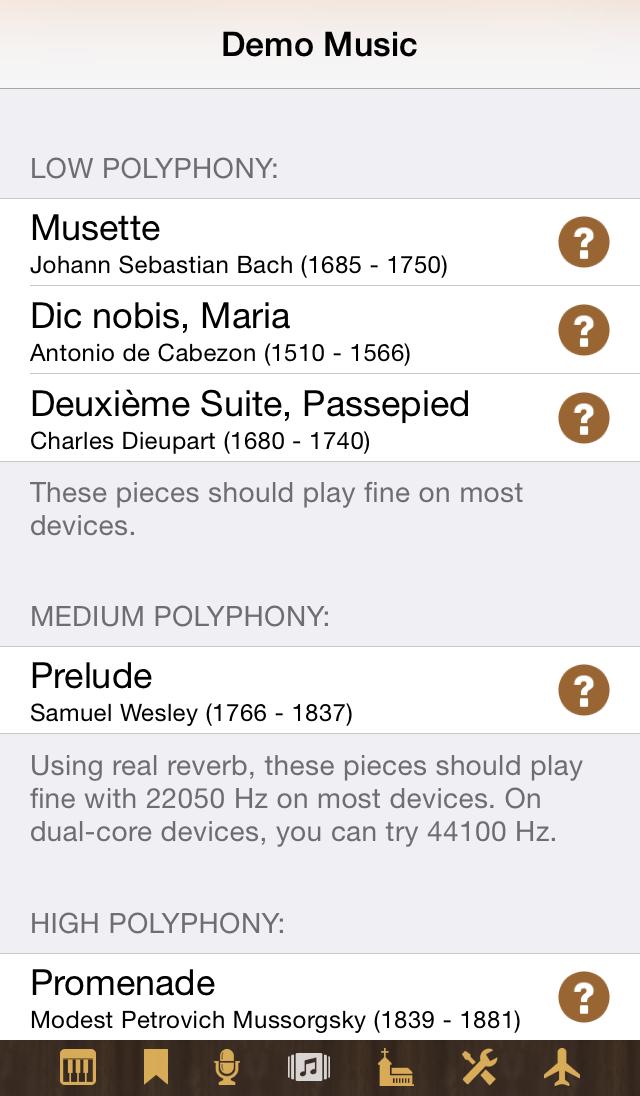
When you tap an entry and decided whether the selection of the stops should be done automatically or manually, the demo starts and the app switches to the Console view, where you can either watch the automatic registration or select the stops yourself. A Stop Demo button appears at the Console view for letting you stop the demo. If you would like to, you can also record the demo (of course you will first start the recorder and then start the demo).
By tapping the detail disclosure button of an entry in the demo pieces list you get more information about a piece:
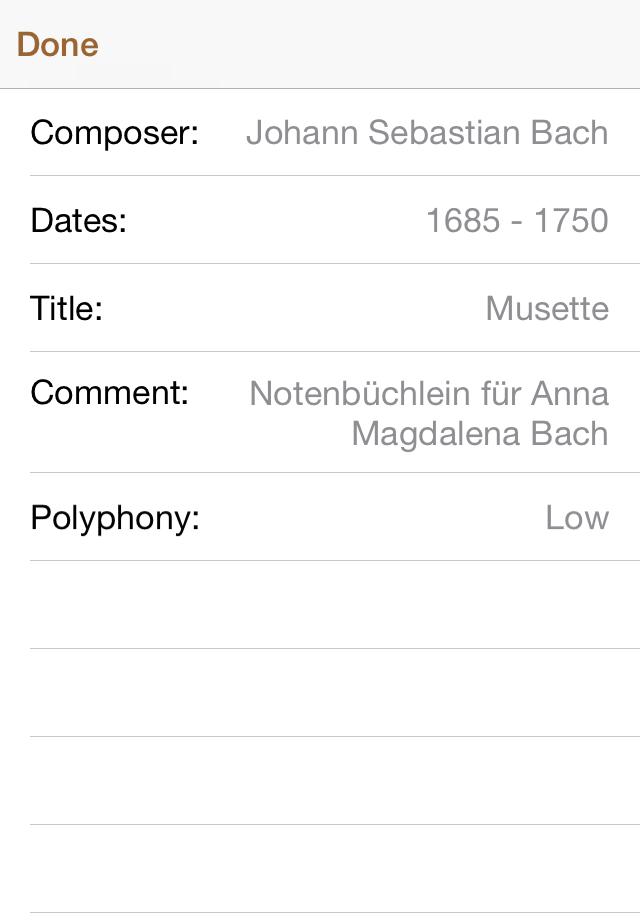
You return to the list by tapping Done.