| Return | General | Console | Combinations | Recordings | Demo | Gallery | Settings |


|
Settings
By default, Napo is configured to let all manuals respond to note on/off messages on MIDI channels 1-4. Of course this does not make much sense for apps with more than one manual and if you have more than one MIDI keyboard. Then you need to adapt the MIDI configuration to your needs. This, and many other things, can be done in the Settings view.
At the right top of this view there is a button which opens an action menu:
This action menu offers the following entries:
- About the App: Displays the app version, the framework version and background information like the origin of the sample set and license notes.
- In-App Purchases: If the app offers in-app purchases, you can get a list of them by tapping this entry. The in-app purchase list lets you purchase items, restore particular previously purchased items, and restore all previously purchased items in one step. All purchases are non-consumable, i.e. once purchased, they can be restored without cost any number of times.
- Visit Support Page: Opens Safari and navigates to the support web page of the app.
- Show Napo User Manual: Opens Safari and shows the Napo oneline user manual, i.e. the web pages that you are reading right now. This entry is there starting with Napo 4.14.
- Launchpad Configuration: This entry is there only in Napo 4.11 and later and is of interest only if you would like to use a Novation Launchpad for controlling the organ app. The corresponding functions are explained here.
- Reset Settings: Resets all settings to their factory values.
The Settings view is split into several thematic views and an additional view where you can load and save the settings. These subviews can be selected by tapping the buttons that sit above the main icon bar:
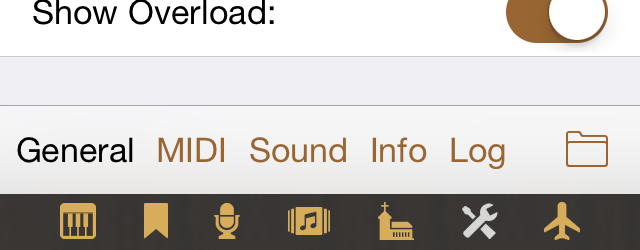 There are currently the following subviews:
| General | In this view, you can configure the appearance of the Console view and behaviour like the transposing functionality and support for some types of MIDI communication. |
| MIDI | This view serves for setting the MIDI channels for the manuals / the pedal, MIDI controllers for volume sliders / swell pedals, and MIDI messages to control stops, tremulants, couplers and combination functionality. |
| Sound | Use this view to select the sample rate and buffer size and configure the reverb. |
| Info | This view shows information about disk space and sample files. |
| Log | This button is available starting with Napo 4.10 and still missing in some of the subsequent screenhots. It does not represemt a view like the others, but it opens the log display that is described in General Remarks. |
| Save/Load | This view, symbolised by a folder icon, is for managing saved settings. Saving and loading settings can be useful for example if you happen to operate the app with different MIDI consoles. |
In the following we give a short description of the subviews, their sections and the particular settings.
General – Appearance ↑
These settings define the look and operation of the Console view:
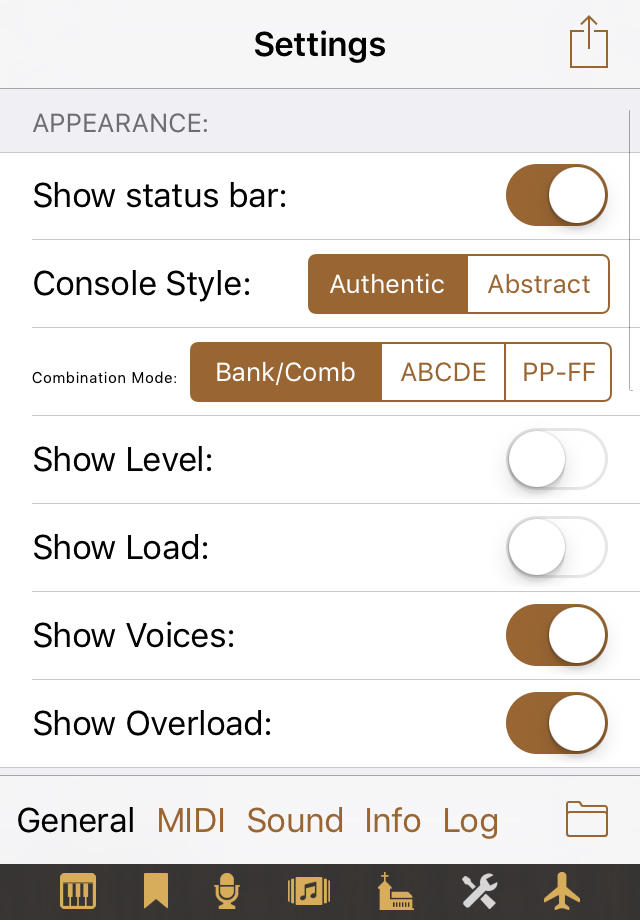
- Show Status Bar: With this you can hide the iOS status bar, to get some extra space for the other screen elements. This option was added in Napo 4.17. Note: iOS 5 and iOS 6 are somewhat stubborn and correctly adapt the layout only after a rotation of the device or a restart of the app. Starting with Napo 4.22, the status bar is always hidden in landscape mode on iPhone and iPod touch, as this is common for Apple apps, too.
- Console Style: Here you can select the display style of the Console view. Authentic means that the Console view tries to mimic the real console, while Abstract is optimised for ease of use. You will see the changed style when you return to the Console view.
- Combination Mode: This setting controls whether the Console view shows buttons for bank / combination selection or the buttons A,B,C,D,E for direct access to five combinations. Starting with Napo 4.16, the latter buttons can be labelled with PP,...,FF.
- Show Level: Here you can tell if you would like the audio level to be displayed as a coloured vertical line at the left of the screen.
- Show Load: If this switch is set, then the current load of the device will be displayed as a coloured horizontal line above the icon bar. With increasing load, this bar grows to the right where it changes from green to orange to red. Red means that you operate the device at overload and risk stuttering sound.
- Show Voices: If this switch is set, then the number of playing voices will be displayed in the right of the tab bar (if there are any playing voices).
- Show Overload: If this switch is set, then CPU, I/O and Reverb overload conditions are signalled by yellow warning triangles.
General – Behaviour ↑
These settings define the behaviour of the app concerning cooperation with iOS and other apps:
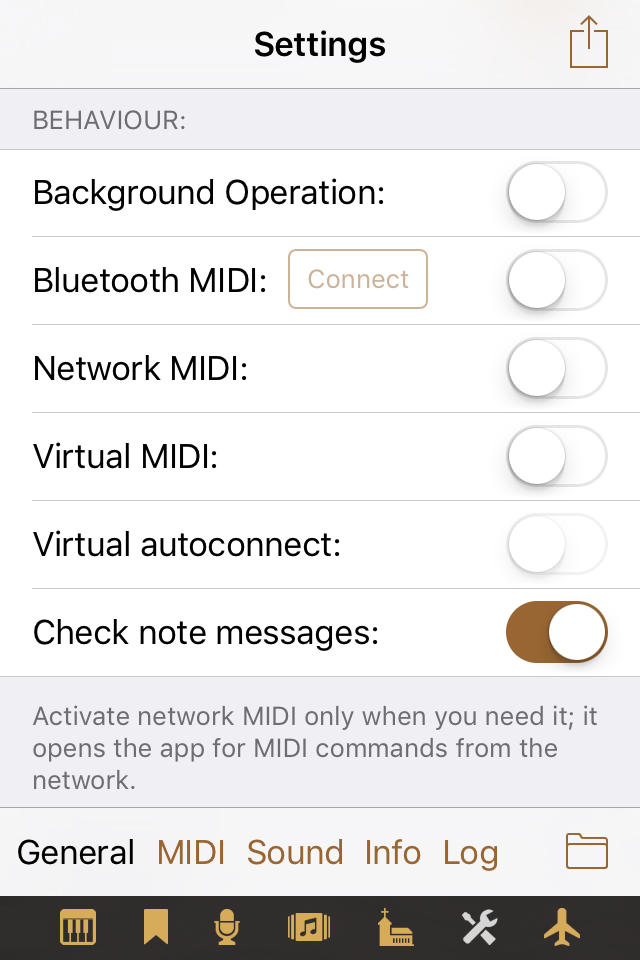
- Background Operation: By default, a Napo app is suspended when you switch to another app, i.e. its sound fades out and it stops processing MIDI events. With this switch (or by long-pressing the airplane icon in the icon bar) you can configure the app to continue to run in the background. For example, you can start another virtual instrument app in the foreground and play both at the same time. Or activate the Virtual MIDI switch also and start a virtual keyboard or MIDI player app that can send MIDI data to the Napo app's virtual MIDI channel. To save energy, do not allow background operation if you don't need it, although, after 15 minutes of idle time (no pipe voices are playing) in the background, the app deactivates its audio session and as a consequence gets suspended by iOS. In this case you have to bring the app to the foreground if you would like to continue using it.
- Bluetooth MIDI: Support for MIDI over Bluetooth is
new in Napo 4.5 and available only for iOS 8+ and devices which support
Bluetooth LE. Tap the Configure button to open an iOS
tool for advertising your device as a Bluetooth-based MIDI peripheral.
Starting with Napo 4.22, the button is labelled
with Connect, and, after tapping, there is the
selection to advertise the device via Bluetooth, as before, or to let
the app itself scan for peripheral devices.
With MIDI over Bluetooth LE, establishing a connection works like this: Device A or an app running on device A offers a local MIDI service with a configurable name via Bluetooth. Device B or an app running on device B scans for such services and initiates the connection setup.
Up to version 4.21, a Napo app could only take the role of device A. However, there are peripherals that cannot serve as device B, but solely as device A. Partly (e.g. MIDI Bluetooth adapters in the shape of a plug) such devices don't even have a user interface where it would be possible to select device A. In this case the Napo app has take the role of device B.
- Network MIDI: Napo can process MIDI commands received via RTP-MIDI. For example, you can connect a USB MIDI keyboard to a MacBook and use the Mac's Audio-MIDI-Setup to create a session for routing the MIDI data to your iOS device. Do not turn on network MIDI if you don't need it. There could be a joker on your network who likes to unsettle you by remotely playing your organ app.
- Virtual MIDI: Virtual MIDI is a way to let other apps that run on the same device send MIDI data to your Napo app. When you activate this switch, the Napo app creates a virtual MIDI port named by the organ app. The other app could be a MIDI player, a virtual keyboard, or a chord generator app, for example. Activating virtual MIDI activates the Background Operation switch also.
- Virtual autoconnect: This switch is new in Napo 4.23. The usual proceeding for establishing a Virtual MIDI connection is that a sender app offers the option to select a receiver. Some sender apps do not support this. By setting the Virtual autoconnect option you advise Napo to automatically connect to all Virtual MIDI senders.
- Check note messages: This switch is new in
Napo 4.20. It determines whether to check note messages for the
requirement that every note-on message is followed by a
corresponding note-off message before the next note-on message
for the same note on the same channel follows, and vice versa.
This should always be the case because the key of a keyboard instrument
has to be released before it can be pressed again.
The effect of the switch is as following:
- On: When unexpected on/off sequences are received for a note and a channel, Napo creates a warning message in the log and ignores the unexpected command. For a sequence on-on-off-off, for example, a warning is displayed for the second "on". The following "off" deactivates the corresponding sound, and the second "off" gives another warning. This is the behaviour that was used up to Napo 4.19. It helps finding and inspecting problems in the MIDI setup, for example when the same channel is used by two keyboards or when the wiring is not reliable. An on-command which, for whatever reason, is missing its associated off-command, thus conforms in behaviour to a mechanical organ when a tone gets stuck: One simply hits the key once more to resolve the jamming, because the on-off sequence that is sent by this leads to a warning, but does also switch off the respective sound.
- Off: With this, the described message sequences are not treated as errors. Instead, Napo counts how often the note was switched on, and only after it was switch off the same number of times, the "off" will be processed. When a note-off command is lost, however, the situation can then not be cleared by hitting the corresponding key again, but "Notes Off" must be tapped.
While it is wise to let the check stay active when playing manually, it might be useful to deactivate it for rendering MIDI files (as demonstrated in MarcMoerd app as MIDI player) because even MIDI files of organ and piano music can occasionally contain interleaved on-off commands.
General – Acoustics ↑
These are settings related to tuning and similar topics:
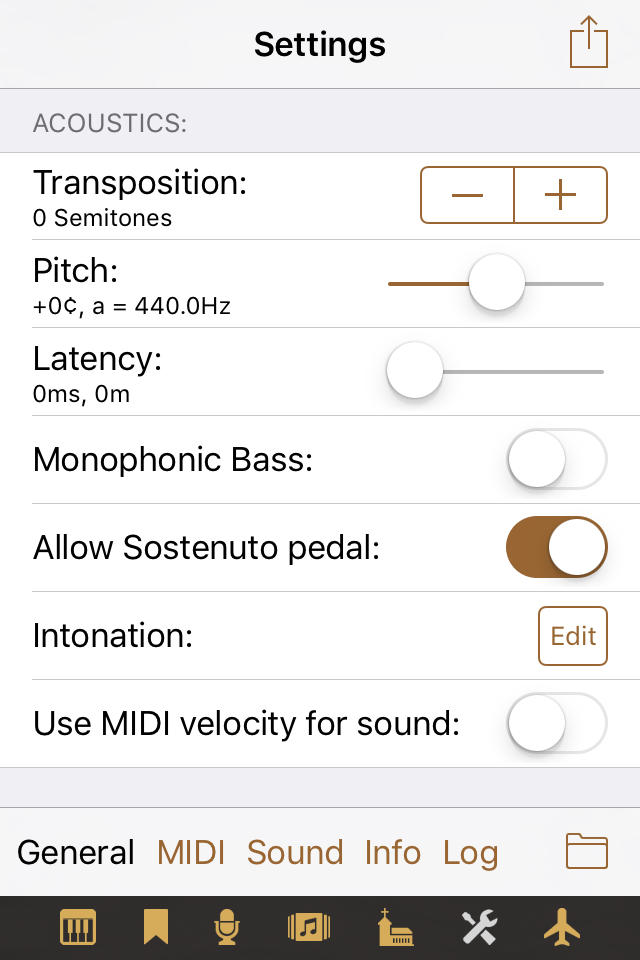
- Transposition: You can use this option to transpose the incoming MIDI signals up or down by up to six semitones. This does not increase the tonal range of the organ. If, for example, the highest note of the organ is g4 and you transpose up by two semitones, then you will get this g4 note by pressing the f4 key, but you will get no sound by pressing the g4 key.
- Pitch: The pitch of the app depends on the sample set. Usually it is the unaltered pitch of the real organ. To adapt the sound of the app to other instruments, you can apply a pitch-shifting by up to +/- 100 cents. The pitch shifting is done by resampling with cubic interpolation. The slider allows a comfortable adjustment of the pitch with immediate acoustical feedback. To reset the pitch to 0 cents you can simply tap the + and then the - button of the transposition setting (or vice versa).
- Latency: Here you can configure an additional, artificial latency, which is given in milliseconds and by the corresponding distance between the audio source and your ears. The effect is that the sound does not start when you press a key but only after the time that is specified here. The purpose of this setting is to allow you practising for pipe organs where the console is positioned at a large distance to the pipes. At a speed of sound of 340 m/s, 100 ms latency correspond to a distance of 34 m. Within the app, this functionality is realised by applying an artificial delay to the MIDI messages. The values displayed in the Latency line do not include the latencies that are added by MIDI, the iOS audio system and the app's audio processing.
- Monophonic Bass: You see this switch only if the app includes monophonic bass functionality. Its intention is to let you play the pedal stops with the lowest pressed key of a MIDI keyboard if you don't have a MIDI pedal, to get a fuller sound. To achieve this, turn on monophonic bass and in the MIDI settings deselect all channels for the pedal (or at least the channels that are used by the manual).
- Allow Sostenuto pedal: Starting with version 4.11, Napo supports the use of Sostenuto pedals. However, there can be cases, for example in a more complex MIDI setup with several instruments, where you do not want this. So since Napo 4.19 you can choose whether these pedals should be supported or not. (Up to Napo 4.22, the term Sustain pedal was used here. As only the currently active notes will be sustained, we have replaced this by the more correct term Sostenuto pedal.)
- Intonation: The buttons opens an editor where you can adjust the volume of each rank. This feature was added in Napo 4.11 upon user request.
- Use MIDI velocity for pipe sound: If your MIDI keyboard sends key velocity data, then activate this switch to use the velocity to control then the volume of the pipes. This feature was added in Napo 4.10 upon user request.
Then there are some parameters that are visible only if the app contains the respective noise files:
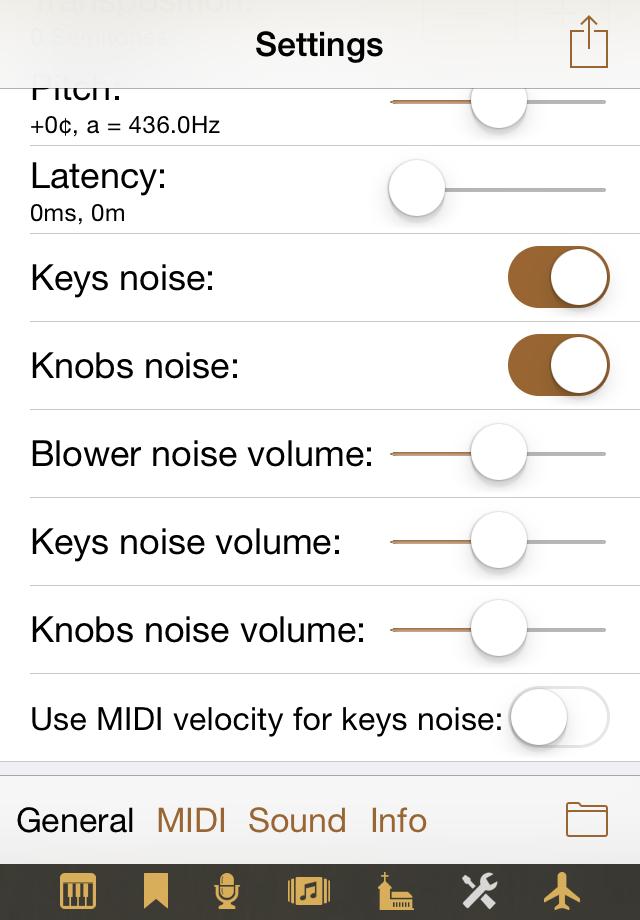
- Keys noise and Knobs noise: Activate these switches to hear the respective sounds when you play. While the usefulness of the knobs noise may be questioned, the keys noise not just makes the sound more lively, it also improves the feeling of authenticity for the organist, in particular when playing with headphones.
- Blower noise volume, Keys noise volume and Knobs noise volume: These sliders allow you to set the volume of the respective sound.
- Use MIDI velocity for keys noise: If the app contains keys noise, and if your MIDI keyboard sends key velocity data, then with this switch you can advise the app to use the velocity data to control the level of the keys noise. Put simply: The harder you play the MIDI keys, the louder the virtual keys noise will be.
Many organ keyboards do not send velocity data at all. Even keyboards that do send velocity, mostly don't send release velocity. Release velocity is currently not used by Napo.
MIDI – Channel Mappings ↑
In version 4.5, Napo's MIDI functionality got a significant upgrade. It is now possible to map multiple MIDI channels to each of an organ's manuals, where every channel can be given a note range and an octave offset. Among other things, one can now realise split functionality even with rather dumb MIDI keyboards that don't offer a splitting feature themselves.
Suppose we have a MIDI keyboard with seven octaves that sends on channel 2 in the note range 24 - 108, and we would like to use the lowest two octaves to play PiteaMini's Pedal, leaving the upper five octaves for Manual. The lowest C key of an organ manual or pedal usually corresponds to MIDI note number 36. Thus, we need to map notes 24 - 48 to Pedal with an octave offset +1, and notes 49 - 108 to Manual with an octave offset -1. In the Settings view, these channel mappings look like following:
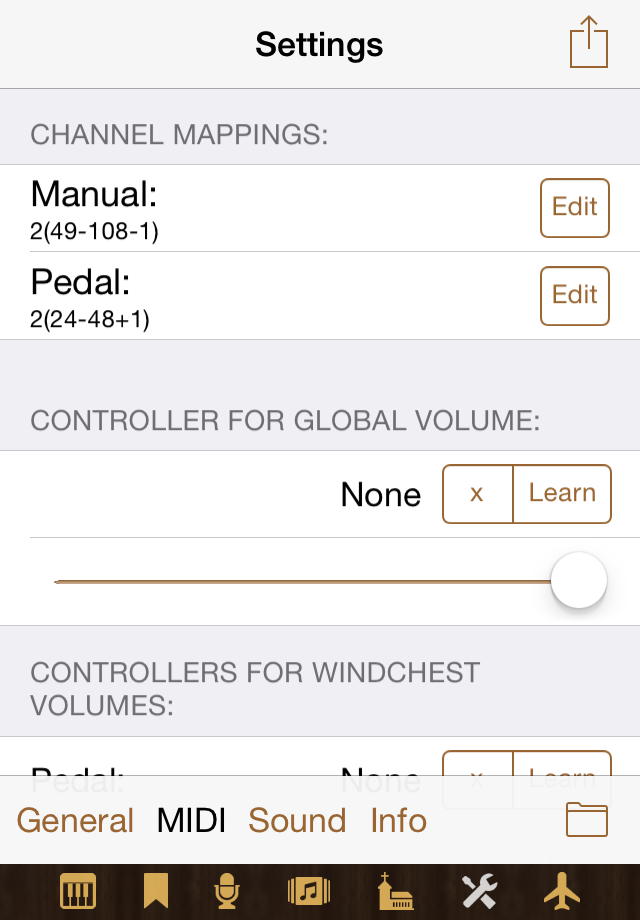
To create or change the mapping for a manual, tap the Edit button to the right of the name of the manual, and you will get to the MIDI mapping view for this manual:
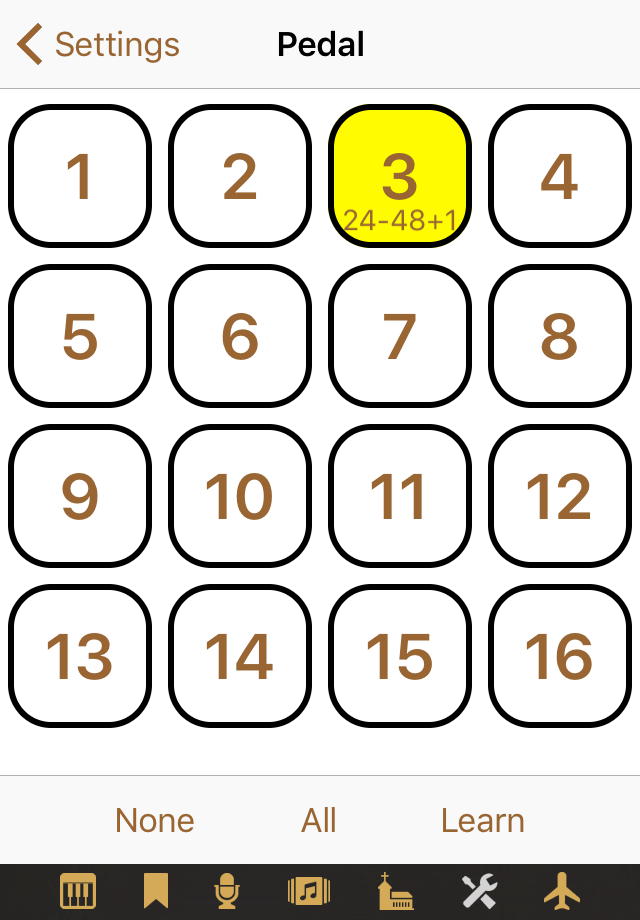
Each channel that is accepted by the current manual (here: Pedal) is emphasised by a yellow background color. If the note range is restricted or there is an octave offset, then the values are displayed below the channel number. There are two ways to configure the mapping. The simple way is to tap Learn and then press a key (or two keys at the same time to define a note range) on any MIDI keyboard that you would like to use for the current manual. Tap None to deactivate all and All to activate all channels.
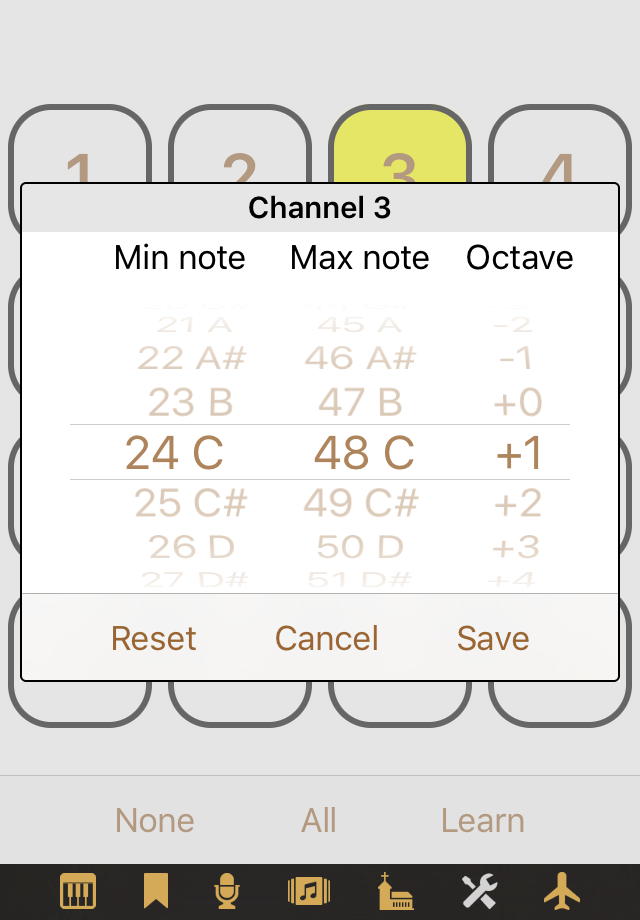
The other way is to long-tap a channel button to get a picker view where you can choose a note range and an octave offset for this channel:
MIDI – Controllers for Volumes ↑
You can configure MIDI controllers for manipulating the global volume and the volumes of particular windchests:
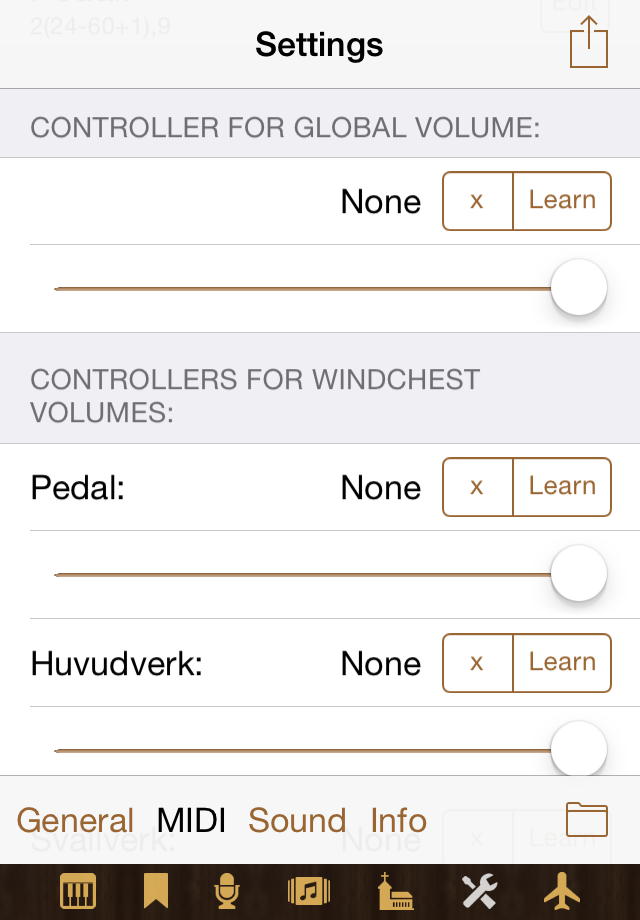
To do this, tap Learn and then move the MIDI controller, which usually is a volume slider or swell pedal. Tap x to remove a controller definition.
The sliders below the controller definitions give a visual feedback of the movements of the MIDI controllers. Of course you can also use these sliders to manipulate the volume settings. The first slider for the global volume is coupled to the volume slider of the Console view.
MIDI – Switches for Stops ↑
This section has one entry for each stop of the organ, where you can configure that the Console view's stop knob should respond to MIDI note-on or note-off messages:
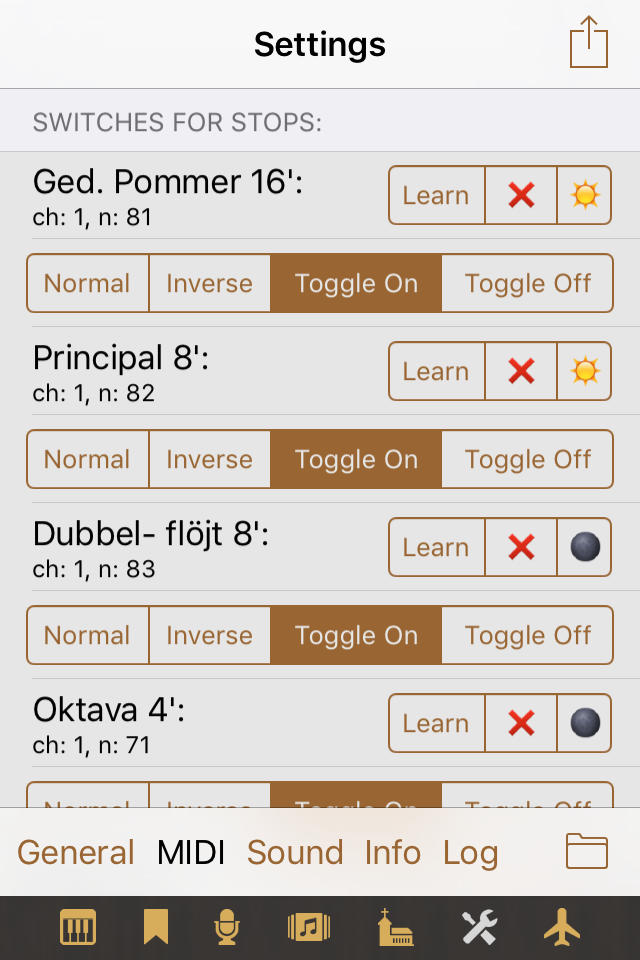
You do this by tapping Learn and then operating a button, key or switch at your MIDI keyboard or MIDI console which creates note-on or note-off messages. Tap the red x to remove a switch definition.
For each switch you can configure the mode of its operation. Normal means switch-on at note-on and switch-off at note-off. Inverse means switch-on at note-off and switch-off at note-on. Toggle at On means that the knob state is toggled by note-on messages, Toggle at Off means that the knob state is toggled by note-off messages,
New in Napo 4.5: You can now use MIDI program change messages to toggle stops. To configure this, tap Learn and then perform the program change that you would like to use for this stop.
Starting with Napo 4.18, it is possible to drive lamps of stop switches, provided they response to the same note messages that are sent by the corresponding switches, which is for example the case with certain consoles of Hoffrichter and Pausch-e. To activate this control, tap the dark moon symbol to the right of the red x. It will then change to a bright sun symbol. By tapping again, the control for the corresponding stop can be turned off again.
MIDI – Switches for Couplers / Switches for Tremulants ↑
If the organ has couplers and tremulants, then there are sections to define switches for them. This works in the same way as the switches for stops.
MIDI – Buttons for Commands ↑
Here you can define that various commands can be triggered by MIDI note-on messages:
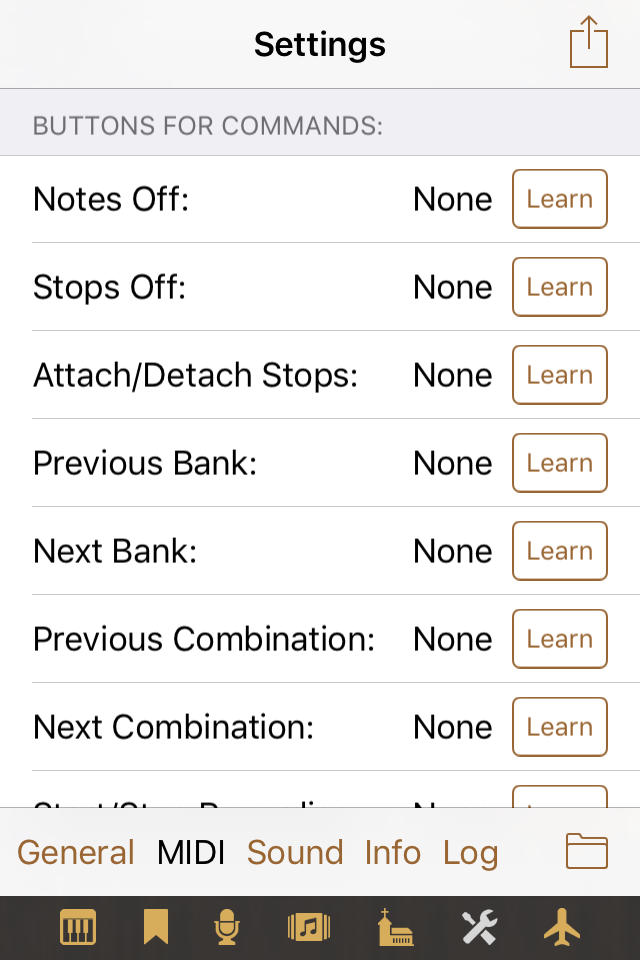
Learn and x have the usual meaning. Again, starting with Napo 4.5, MIDI program change messages can be used as well, and with Napo 4.18, driving lamps by note messages is supported.
MIDI – Buttons for Combination Banks / Buttons for Combinations ↑
In the same way you can use buttons or keys to select one of the first 16 combination banks or one of the first 16 combinations of the selected bank.
Sound ↑

- Sample Rate: The default sample rate is 44100 Hz (or
48000 Hz), namely the sample rate of the WAV files of the sample set. If
it turns out that your device has not enough processing power and the
app is bothering you with overload warnings, then try 22050 Hz (or
24000 Hz, respectively). When you do this the first time, the app
creates downsampled WAV files with half the samplerate. You can watch
the progress in the Info view. If you switch back to
44100 Hz you can decide whether you would like to keep the downsampled
files for future usage or remove them to free up the disk space. iOS
can also delete these files if it detects a shortage of SSD space, but
not while your app is running.
Mind: With this setting you select the sample files' sample rate. Napo tries to switch the hardware sample rate of your device to the same value. Whether this succeeds, depends on the circumstances. For example if the Audiobus app is running, you cannot switch the hardware sample rate to 22050 Hz, which means that iOS needs to do additional processing of the audio data (but still the generated overall load is lower than with 44100 Hz). To give you a feedback, the hardware sample rate is displayed to the left of the sample files' sample rate. - Buffer Duration: The buffer duration tells iOS in
which time intervals it should ask the app for new sound data and thus
is a measure for how fast the app can react to your playing. Usually 23
milliseconds is a good enough value for organ playing. However if you
feel that this gives too much latency or jitter to your music, you can
try 12 milliseconds. There is also a 6 milliseconds option, but this
will probably be too challenging for current devices. Furthermore, in
the current implementation of Napo's tone generator there is an
additional internal buffer of 512 sample points, which makes it
somewhat useless to choose 6 milliseconds buffer duration.
Again, the actual buffer duration may stay different from what you select, for example if you connect the Napo app to Audiobus. The actual buffer duration is displayed to the left of the selected buffer duration. - Overdrive: Some users don't like it when the app is
messing around with the general volume in overdrive situations, and
would rather prefer to hear some distortion. To please everybody, there
are the following choices:
- Adj.Ampl.: This is the default behaviour. When an overdrive happens, the app will reduce the amplification. You see the volume slider in the Console view move downwards.
- Clip: With this setting, the app does not do any overdrive prevention. The signal is just clipped, and you will hear distorted sound.
- Sigmoid: As a compromise, this option applies a sigmoid transform to the signal. This does not help at heavy overdrive, but it can remove the distortion in not-so-heavy cases. As the transform is applied always, you would think that the benefit comes with the cost of an altered sound even when the signal is not overdriven. But this is not the case – you won't hear a difference for normal signal values.
- Reverb: The default setting is iOS, which cuts off the release part of the sample files and lets iOS create the reverb. Real plays the samples including their release part, which needs more processing power. (The notation Real is a bit misleading, as the samples could contain artifical reverb themselves.) You can turn reverb off (setting None) if you would like to use an external effect unit or if you are playing in a large room with its natural reverb. Another option is to use Napo's convolution reverb.
Sound – iOS Reverb ↑
When you select iOS Reverb, you can either use one of the presets Short, Medium or Long, or you set the parameters of the reverb unit manually. There are seven of them, which can be controlled by sliders:
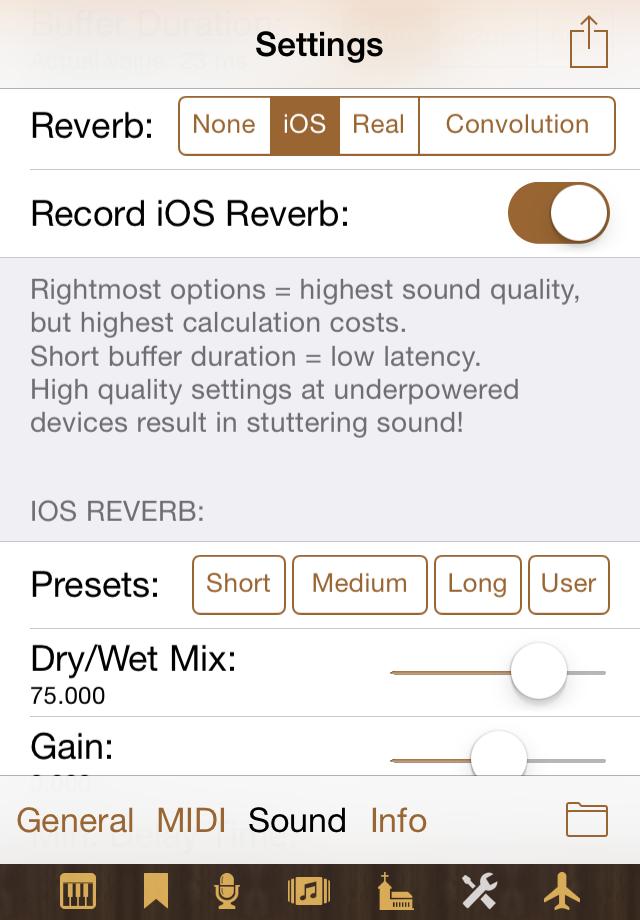
You can save the current parameters as a User Setting and later recall it by tapping User. Beware: by choosing unsuitable values you can get deformed sound that reminds more of an overdriven drawbar organ than a pipe organ. We don't feel liable if you damage your ears or speakers or the nerves of your neighbours.
When you create a recording of your organ playing with the app's internal audio recorder, the reverb is normally included. However, there is the option to deactivate the recording of iOS reverb, which makes it possible to play with reverb but record without reverb and add reverb later with any audio software of your choice.
Sound – Convolution Reverb ↑
When you select Convolution Reverb, you see a list of available impulse responses:
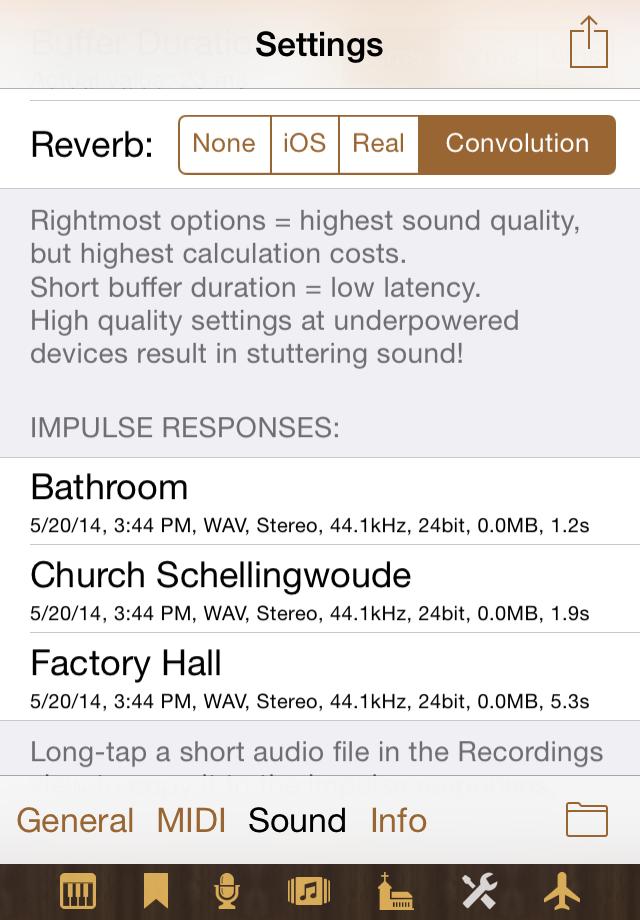
These can be factory impulse responses that are included with the app, or impulse responses that you uploaded to the device (this functionality is part of the Recordings view). Impulse responses can be renamed or deleted. Long-tap an impulse response name to do this. You can reinstall the factory impulse responses anytime by tapping the button (Re)install factory IRs.
It must be clearly said that only devices like iPad 4 or iPhone 5 or better are fast enough to cope with reasonable reverb lengths.
Info ↑
This view shows information about disk space and sample files, and it allows you to delete the 22050 Hz (or 24000 Hz) files after you have switched back to 44100 Hz (or 48000 Hz) in the Sound tab. The displayed values are:
- Disk space: This is the total size of your SSD.
- Free space: This is the free space of your SSD. Check this value before your create downsampled files by switching to sample rate 22050 Hz.
- 44100 Hz: The number and total size of WAV files of the sample set.
- 22050 Hz: The number and total size of downsampled WAV files.
- Next you see a horizontal bar where you can watch the progress of the creation of the 22050 Hz files.
- If you have created 22050 Hz files by switching to this sample rate, and then return to 44100 Hz, then you can delete the 22050 Hz files by tapping the button in the last line.
If the sample set is based on 48000 Hz instead of 44100 Hz, then the above elements are labelled accordingly.
Save/Load ↑
In this view you can save or load the current settings. For example, you can create settings for various consoles or environments:
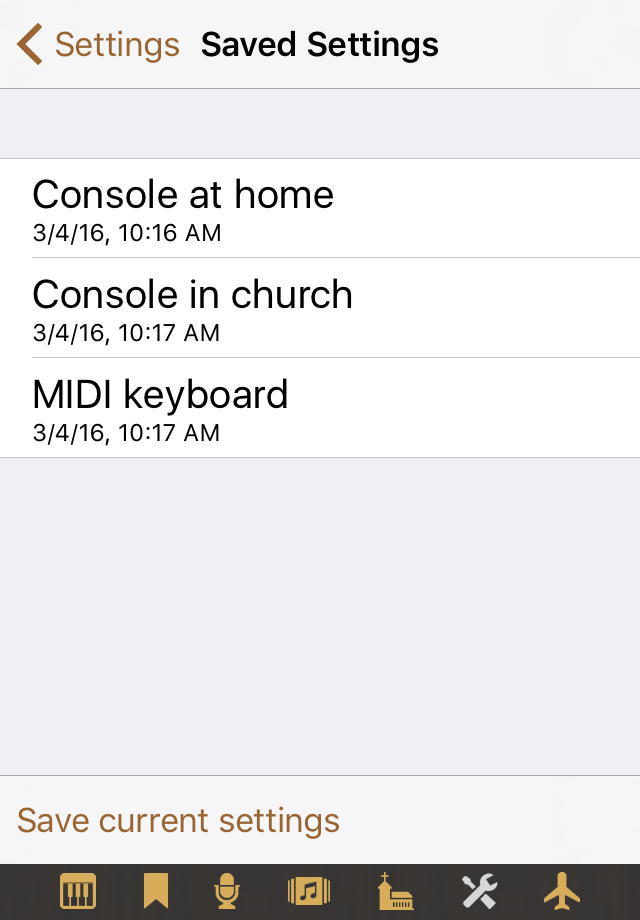
The list shows the settings sets that you have saved, with the time at which they were saved. A settings set contains all parameter values of the four parameter views. It is not possible to save only a subset of the parameters. Saving is done by tapping Save current settings and entering a name. When you long-tap a settings set, you get an action menu by which you can load, duplicate or rename the set. Delete by swiping. Beware: Loading overwrites all your current settings.
New in Napo 4.5: Like it was described for recordings, saved settings can as well be stored in iCloud. As a set of saved settings is just a file, you can still access the locally stored setting sets via iTunes file sharing (or in iOS 11+ with the Files app). See also the general notes on this topic.