| Return | General | Console | Combinations | Recordings | Demo | Gallery | Settings |


|
This is the documentation of Napo 4.5 and the versions 4.6-4.24 which implemented only minor changes and bugfixes. The manual of Napo 4.4 is still available here. The user manual of the current version is here.
General Remarks
Napo's user interface is built from a set of specialised main views, some of which have associated helper views. You select a main view by tapping an element of the icon bar that is displayed at the bottom of the screen:

These are the icons (GLYPHICONS, by the way) and their respective purpose:

|
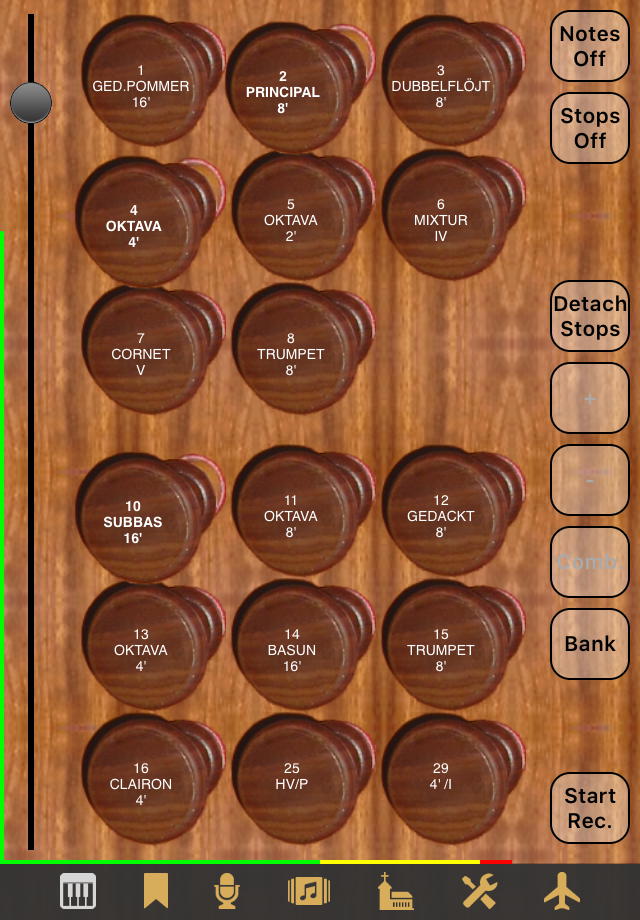
This is to display the Console view, which shows the stop, tremulant and coupler knobs and some other frequently used buttons, and can also display onscreen keyboards. Tap the icon repeatedly to toggle between the stops display and a combined stops / keyboards display. New in Napo 4.5: Long-tap the icon to switch to a fullscreen keyboard display. |

|
This is to display the Combinations view, which allows you to edit combination banks and combinations. A combination is a kind of bookmark, so we chose a bookmark icon. |

|
This is to display the Recordings view, where you can listen to and administrate your audio recordings or other audio files uploaded to the app. |

|
This icon is to display the Demo view, which lets you play some demo pieces that are included in the app. |

|
This is to display the Gallery view, where you can enjoy images of the organ, the church or concert hall or its surrounding. |

|
This is to display the Settings view, where various kinds of app settings can be edited. New in Napo 4.5: Long-press the icon to access saved settings. |

|
This icon does not stand for a view, but it provides fast organ switching functionality. It is a plane that takes you to other organs, so to speak. New in Napo 4.5: Long-press the icon to toggle background operation, so you don't need to go to the Settings view for this. Enabled background operation is indicated by green color of the icon: |
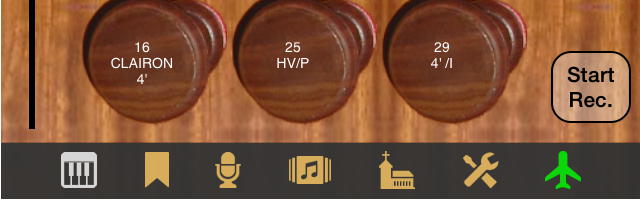
Each of the mentioned views is described in its own section of this user manual. Concerning fast organ switching: After tapping the airplane icon, the other installed Napo apps are displayed, and you can immediately "fly" to another organ by tapping its image:
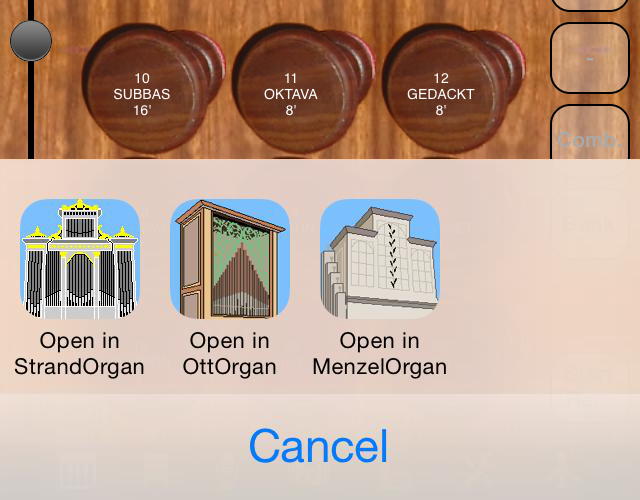
Don't be irritated by the label "Open in ..." or "Copy to ..." (depending on the iOS version). This text is created by iOS and, unfortunately, cannot be changed.
There are some more elements that are common to all of the above mentioned views. Which of these are actually displayed, depends on settings made in the Settings view.
- The Level bar and the Load bar: There is a thin vertical audio level
bar at the left border of the screen. In case the audio level grows to
a value where the sound would overdrive, Napo will reduce the volume
accordingly to prevent this. You can see the volume slider of
the Console view move downwards when this happens.
Next, at the bottom of the screen, above the tab bar, there is a thin horizontal load bar. Its length is a measure for the time which the app needs to generate the audio data. When the load bar approaches the right border of the screen, the app does not manage to generate audio data fast enough. This state is signalled as a CPU Overload condition (see below).
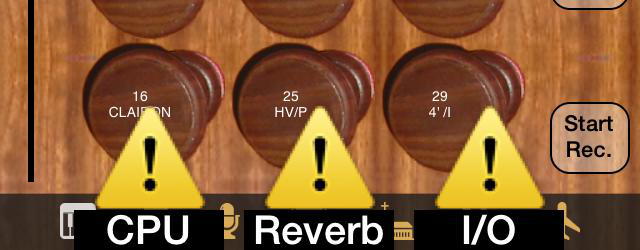
Furthermore, at the bottom right you see the number of playing voices. Only the pipe voices are counted here, but not the blower noise (one voice), the keys noise (one voice per pressed key) and the knobs noise (one voice per active knob). - CPU, I/O and Reverb Overload display: A CPU overload means that the app could not complete the generation of a packet of sound within the available time frame, while an I/O overload means that data was not be loaded from the SSD fast enough. A Reverb Overload can occur if you use convolution reverb with impulse responses that are too long to be processed by your device. These overload conditions lead to degraded sound quality or even to interruptions of the sound.
- Message log: Starting with Napo 4.10, some messages that had been presented as alerts in the past and needed to be acknowledged by the user, are now collected in a message log. At certain events, for example when a MIDI device is being connected, a suitable message is appended to the log and the log is displayed on a semi-transparent grey background. This display disappears after a short time, but it can as well be removed by tapping. Up to ten of the most recent messages are available.
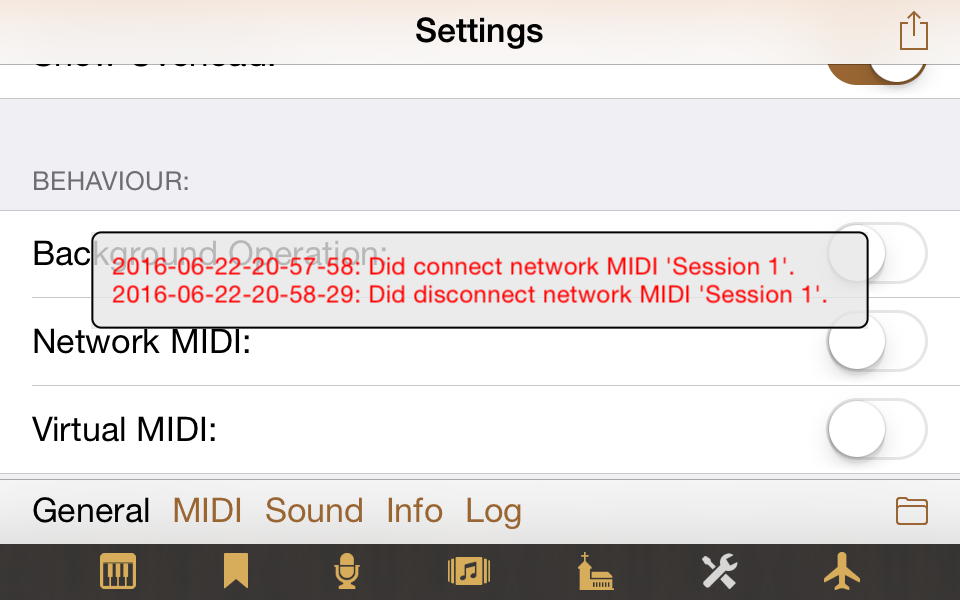
The log can at any time be requested in the Settings view by using the Log button. Then it will appear on a white background and does not disappear automatically but only when you tap it, use the Log button once again, or change to another view.